VPN Connected But No Internet: Why It Happens and How to Fix It
Your VPN says connected, but nothing loads. In most cases it is not the server — it is DNS. Here is how to identify which of four look-alike failures you have, and fix the right one.
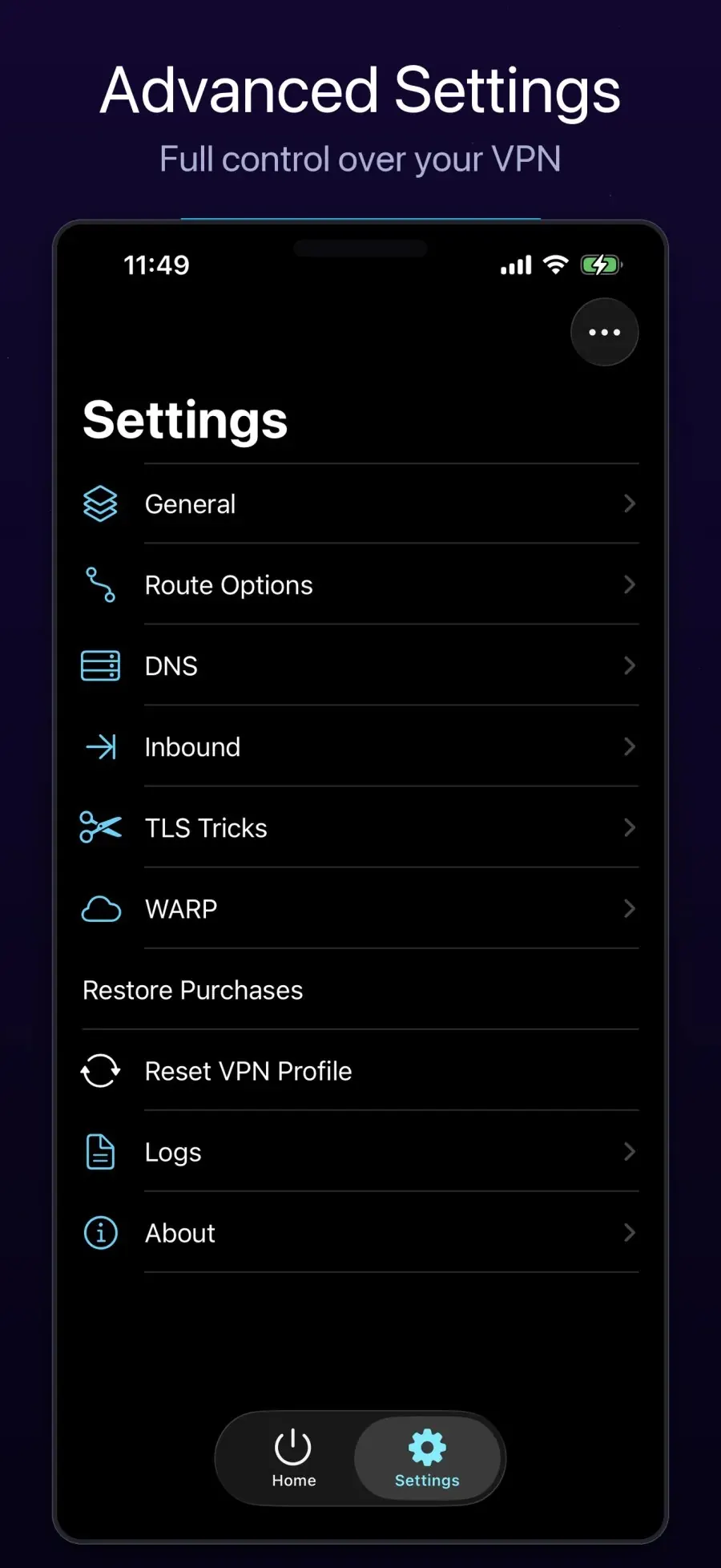
VPN Connected But No Internet 🌐
The status says connected. The icon is on. And not a single page loads.
This is one of the most common VPN problems, and also one of the most commonly misdiagnosed — because four completely different failures produce nearly identical symptoms. People change servers when the server was never the problem.
Here is how to tell them apart in about a minute.
🔎 First: Which Failure Do You Actually Have?
Run these in order. Each answer eliminates something.
1. Does anything load at all? If literally every site fails while the tunnel reports connected, jump to the DNS section — that is the cause the large majority of the time.
2. Do some things work and others fail, with no pattern? That is not a dead tunnel. See intermittent failures.
3. Does the same site fail with the VPN off? Then it is your network or the site. Nothing in the VPN app will fix it.
4. Is your traffic even going through the tunnel? Verify before assuming — see the next section.
✅ Verify the Tunnel Is Actually Carrying Your Traffic
A "connected" indicator only means the tunnel was established. It does not prove your traffic uses it.
- With the VPN off, open any page that shows your public IP address. Note it.
- Connect, then reload that page.
- The address should change.
If it does not change, your traffic is bypassing the tunnel entirely — and no amount of server-switching will help. The usual reasons:
- The network has its own proxy configured. A proxy set on the Wi-Fi network or in system settings takes effect for apps that honour it, routing them around the tunnel. This one catches people constantly, because the VPN genuinely is running.
- Per-app rules exclude the app you are testing with, on platforms that offer that feature.
- A routing rule sends that destination direct.
🎯 The Usual Culprit: DNS
When everything fails at once, suspect name resolution before anything else.
Here is why it looks identical to a dead tunnel: if a domain name cannot be resolved, your device never even attempts to reach the destination. No connection is made, nothing loads, and the tunnel itself is working perfectly the whole time.
How to confirm it in ten seconds: try reaching something by IP address instead of by name. If a numeric address responds while domain names do not, your tunnel is fine and DNS is broken.
What to check next:
- Which resolver does your profile use for proxied traffic, and is it reachable from this network?
- Did you just change a DNS setting? Reconnect so the profile reloads.
- Is a stale failure cached? DNS answers are cached, and a cached failure can outlive the fix. Retry in a fresh browser window after reconnecting.
🎲 When It Works, Then Doesn't
Some sites load, others hang. It recovers, then breaks again. No pattern.
This almost never means a broken tunnel. Two causes account for most of it:
Your server group is handing connections to dead endpoints. Many clients distribute connections across a group of servers. If that group's strategy does not rank members by health, every member gets a share of your real traffic — including ones that cannot connect at all from your network. Roughly one in five connections failing feels like "unstable internet" rather than "some servers are dead".
The health data is stale. Latency measurements refresh on a schedule, and many clients stop refreshing while the tunnel is idle. Reconnect the next morning and selection may be based on hours-old measurements — from when a now-dead server happened to look fastest.
The fix for both: use a selection strategy that ranks by health, and re-run the latency test after idle periods. AI Booster defaults to a health-ranking strategy and re-measures the moment the tunnel comes up, specifically because of this failure mode.
We measured the difference on one subscription: the numbers are here.
🔌 If It Never Connects at All
Different problem, different checklist:
- Refresh your subscription. Expired profiles leave entries that no longer authenticate.
- Turn off other VPN apps. Most systems allow only one active VPN configuration.
- Re-approve the system VPN permission. If it was denied once, the client may fail with no clear message.
- Switch networks. Wi-Fi to mobile data, or the reverse. This separates "this server is down" from "this network blocks it" — some networks block specific transports outright.
- Pick one specific server rather than an automatic group, so the result points at a single endpoint.
🔋 Bonus: It Drops Whenever the Screen Turns Off
On phones this is usually the operating system suspending the app to save power, not a network fault. Check battery optimisation settings for the VPN app, and keep its ongoing connection notification enabled where one is offered — that notification is part of how the system decides to leave it running.
📋 The Short Version
| Symptom | Most likely cause |
|---|---|
| Connected, nothing loads | DNS |
| Connected, some things load | Group sending traffic to dead servers |
| Connected, IP address unchanged | Traffic bypassing the tunnel (network proxy) |
| Never connects | Expired profile, another VPN, or permission |
| Drops when screen is off | Battery optimisation |
Change one thing at a time, and re-test after each change. Changing five settings at once means you will never know which one mattered — and you will likely leave four of them in a worse state than you found them.
Read more: full troubleshooting guide · how node selection works
Control names differ between apps and versions. Follow the labels in your installed client rather than the exact wording here.