TUN Mode vs System Proxy on Windows & macOS: Which One Should You Use?
Why your browser uses your proxy while terminal commands, games, and voice calls bypass it — how OS system proxy settings differ from virtual TUN network interfaces, and when to switch.
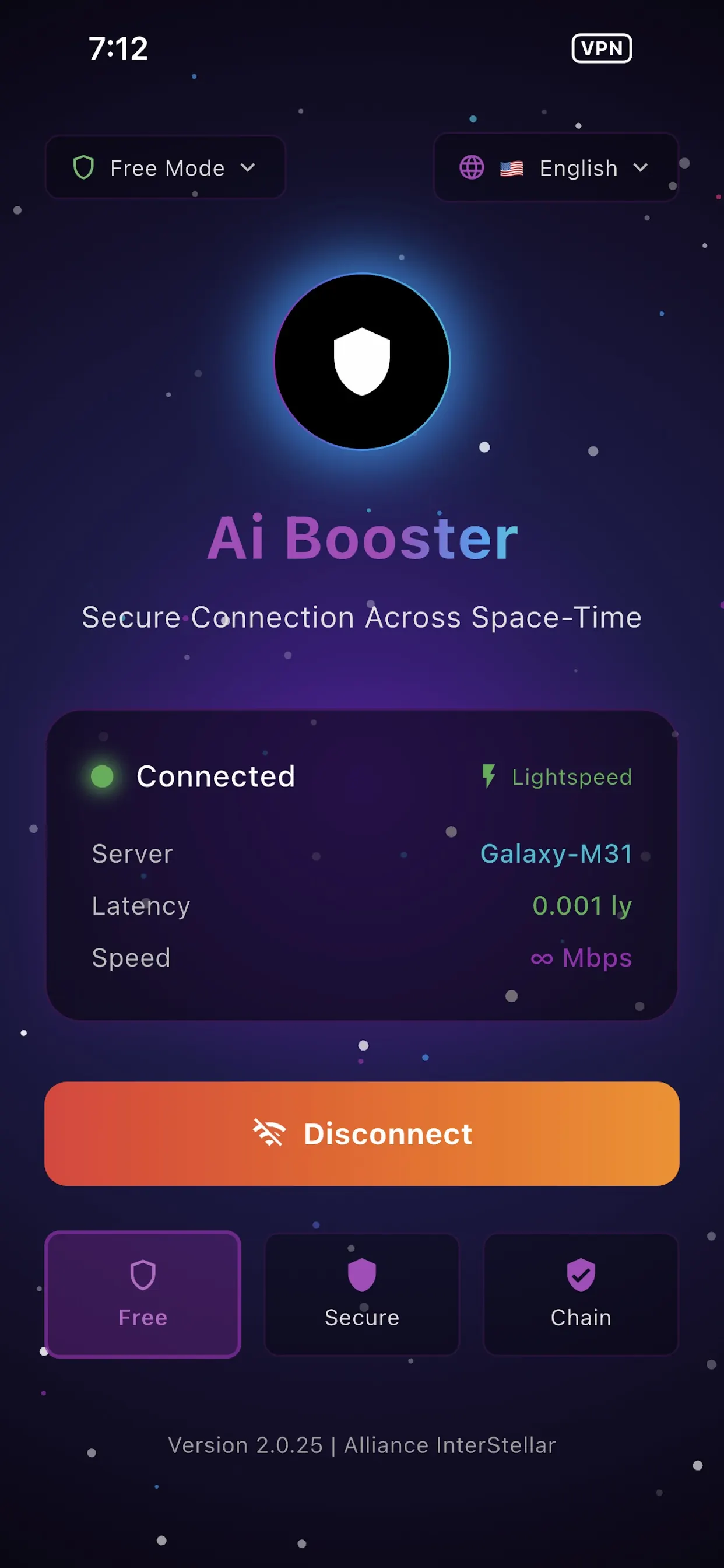
TUN Mode vs System Proxy on Windows & macOS: Which One Should You Use? 🌐
One of the most common networking surprises on desktop computers looks like this: you connect your proxy client, Chrome opens every website cleanly, and then git push, a desktop app, or a UDP voice call behaves as if you never connected at all.
Nothing is broken in your server node. What happened is the difference between System Proxy (an polite suggestion at the application layer) and TUN Mode (a virtual network interface at the operating-system layer).
Understanding what each mode actually touches makes routing predictable and saves hours of debugging.
🧭 System Proxy: Lightweight, Opt-In HTTP/SOCKS5
When you turn on System Proxy in a desktop client such as AI Booster, the client starts a local listener (for example 127.0.0.1 on a local port) and writes that address into your operating system's network preferences — Windows Internet Settings → Proxy or macOS Network → Proxies.
From there, each application decides on its own whether to read that setting:
- Browsers (Chrome, Edge, Safari, Firefox by default): Read the OS proxy setting automatically and send HTTP/HTTPS requests through the local listener.
- Most desktop Electron apps (Slack, Discord desktop HTTP, VS Code extensions): Usually honor the OS proxy, though WebRTC media streams may still use direct UDP.
- Command-line tools (
curl,git,ssh,npm,pip, Go/Rust binaries): Usually ignore the OS GUI proxy unlessHTTP_PROXY/HTTPS_PROXY/ALL_PROXYenvironment variables or tool-specific config files are set. - Games and real-time UDP apps: Open raw TCP/UDP sockets directly to remote IPs and ignore HTTP proxy settings completely.
When System Proxy is the better choice
- You only want web browsers and standard desktop apps routed, leaving local development servers, Docker bridges, and LAN traffic untouched.
- You are working on a locked-down machine where you do not want to grant administrator or network-extension permissions.
🛡️ TUN Mode: Layer-3 Virtual Network Interface
When you switch on TUN Mode, the client creates a virtual network adapter (utun via Network Extension on macOS/iOS, Wintun on Windows, or VpnService on Android) and installs routing rules in the OS routing table.
Instead of asking applications to cooperate, the operating system hands outbound IP packets (both TCP and UDP) directly to the virtual interface:
- Terminal tools work without environment variables:
git,curl,docker pull, package managers, and custom binaries are routed automatically. - UDP traffic is covered: QUIC/HTTP3, voice calls, and UDP-based protocols flow through the tunnel as long as your outbound protocol supports UDP relay (see Choosing a Proxy Protocol: VLESS, Hysteria2, TUIC and Trojan).
- Controlled DNS resolution: TUN mode can intercept DNS queries destined for public resolvers so domain lookups follow the same routing policy as the connection itself, avoiding split-horizon mismatches.
⚖️ Side-by-Side Comparison
| Scenario | System Proxy | TUN Mode |
|---|---|---|
| Web browsing (Chrome / Safari / Edge) | Works immediately | Works immediately |
Terminal (git, curl, ssh, CLI SDKs) | Needs HTTPS_PROXY / SSH ProxyCommand | Works out of the box |
| UDP / QUIC / real-time voice & games | Not routed | Routed at the IP layer |
| Requires admin / OS extension approval | No | Yes (first-time setup on Windows/macOS) |
| Risk of conflicting with another VPN | Low | High if two TUN adapters fight over default routes |
🔧 Three Practical Troubleshooting Checks
If you turn on TUN Mode or System Proxy and hit unexpected behavior, check these three places first:
- "Connected, but no internet at all": Often caused by stale DNS or a leftover manual proxy after switching modes. Our step-by-step checklist in Connected to VPN, No Internet walks through resetting the adapter cleanly.
- Running two VPN/proxy clients at once: Avoid running two TUN interfaces simultaneously unless their routing CIDRs are explicitly disjoint. Keep one client in TUN Mode, or switch the second one to local port-only mode.
- macOS extension prompts: On macOS, Network Extensions require one-time approval in System Settings → General → Login Items & Extensions (we covered why modern macOS apps use Network Extension in appex or sysex on macOS).
AI Booster supports switching between smart split-routing and full tunnel modes across Windows (including the Microsoft Store edition and standalone installer), macOS, Linux, iPhone, iPad, Apple TV, and Android. For platform-specific setup steps, visit the AI Booster Documentation.
More from the blog
The Same VPN App Needs Two Different Shapes on macOS
A macOS packet tunnel built as an app extension ships only through the Mac App Store. A signed direct download needs it rebuilt as a system extension.
Notarization Is Not a Launch Test
A Mac app can pass notarization, codesign and Gatekeeper, then be killed by the kernel on launch. Why it happens, and a three-minute test that catches it.
Put the Version in the Filename, Not Just the Release Notes
Overwrite a file at the same URL and your CDN serves the old bytes for hours. With no cache-purge token on the team, the filename is your only cache key.